Goal
Host this portfolio website directly from a Raspberry Pi on my home network, practising real Linux administration, remote access, and web server configuration along the way.
Environment
- Raspberry Pi 4 (4 GB)
- Raspberry Pi OS (64-bit, Lite)
- lighttpd web server
- SSH for remote terminal access
- Cloudflare Tunnel for public domain
- Windows 11 host on same LAN
Setup process
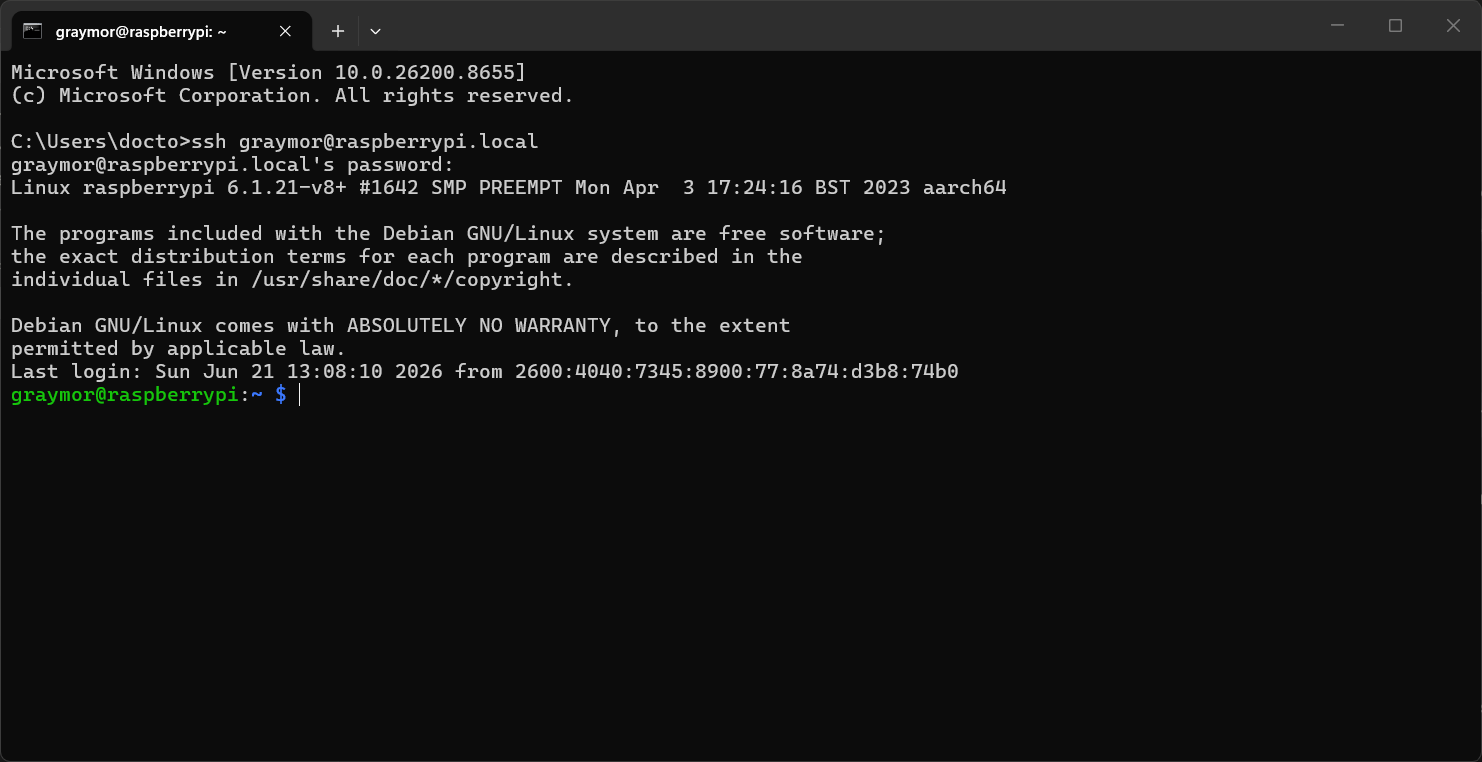
The Pi 4 came with Raspberry Pi OS already on the microSD card. Connected via SSH and ran sudo apt update && sudo apt upgrade -y to bring the system fully up to date before starting configuration.
Used ping raspberrypi.local from Windows to confirm it was reachable. Verified the IP in the router's DHCP lease table and set a static reservation so the address doesn't change.
SSHed in with ssh [email protected], ran sudo apt update && sudo apt upgrade -y, and confirmed the system was fully up to date before proceeding.
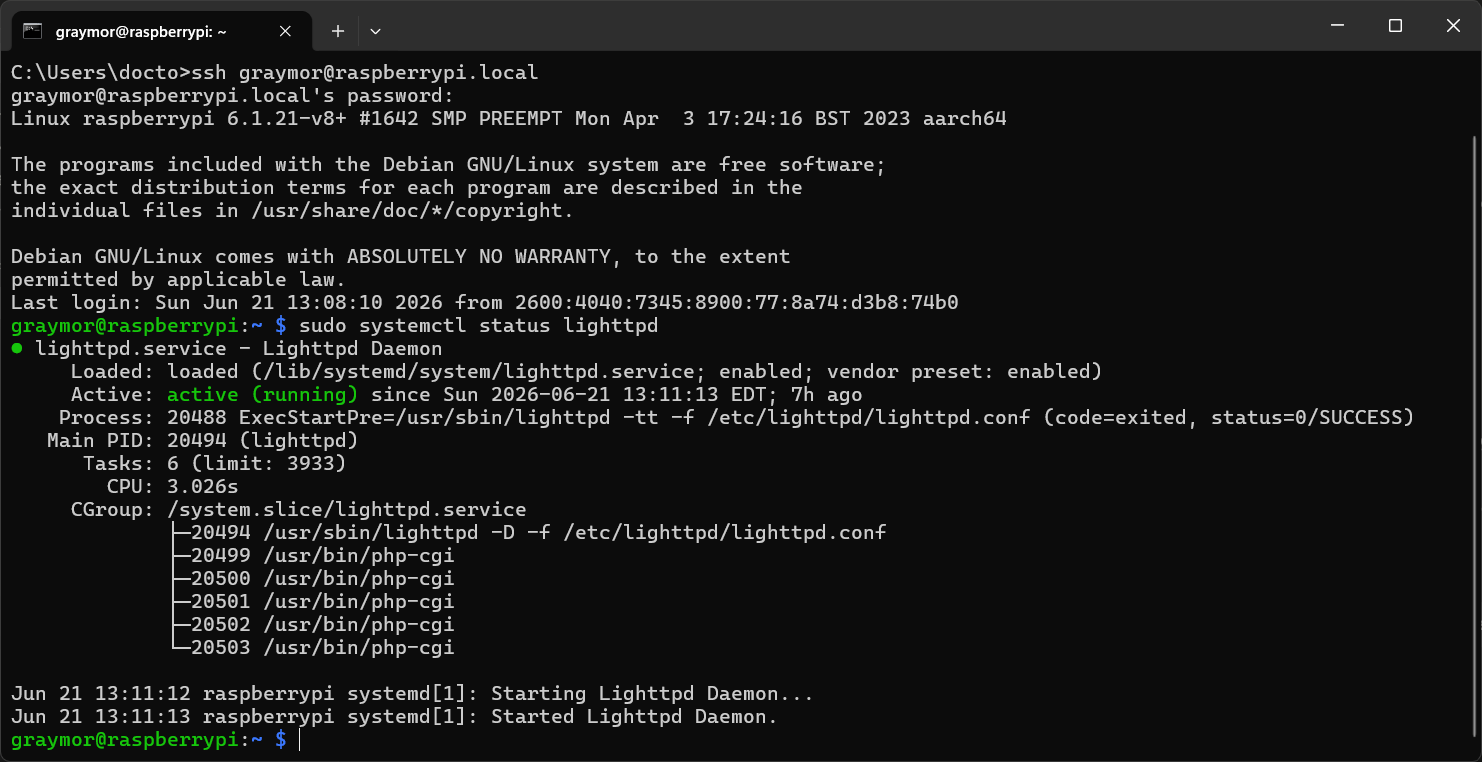
lighttpd was already installed on the system. Verified the service was active with sudo systemctl status lighttpd, then loaded the Pi's IP in a browser to confirm it was serving HTTP correctly.
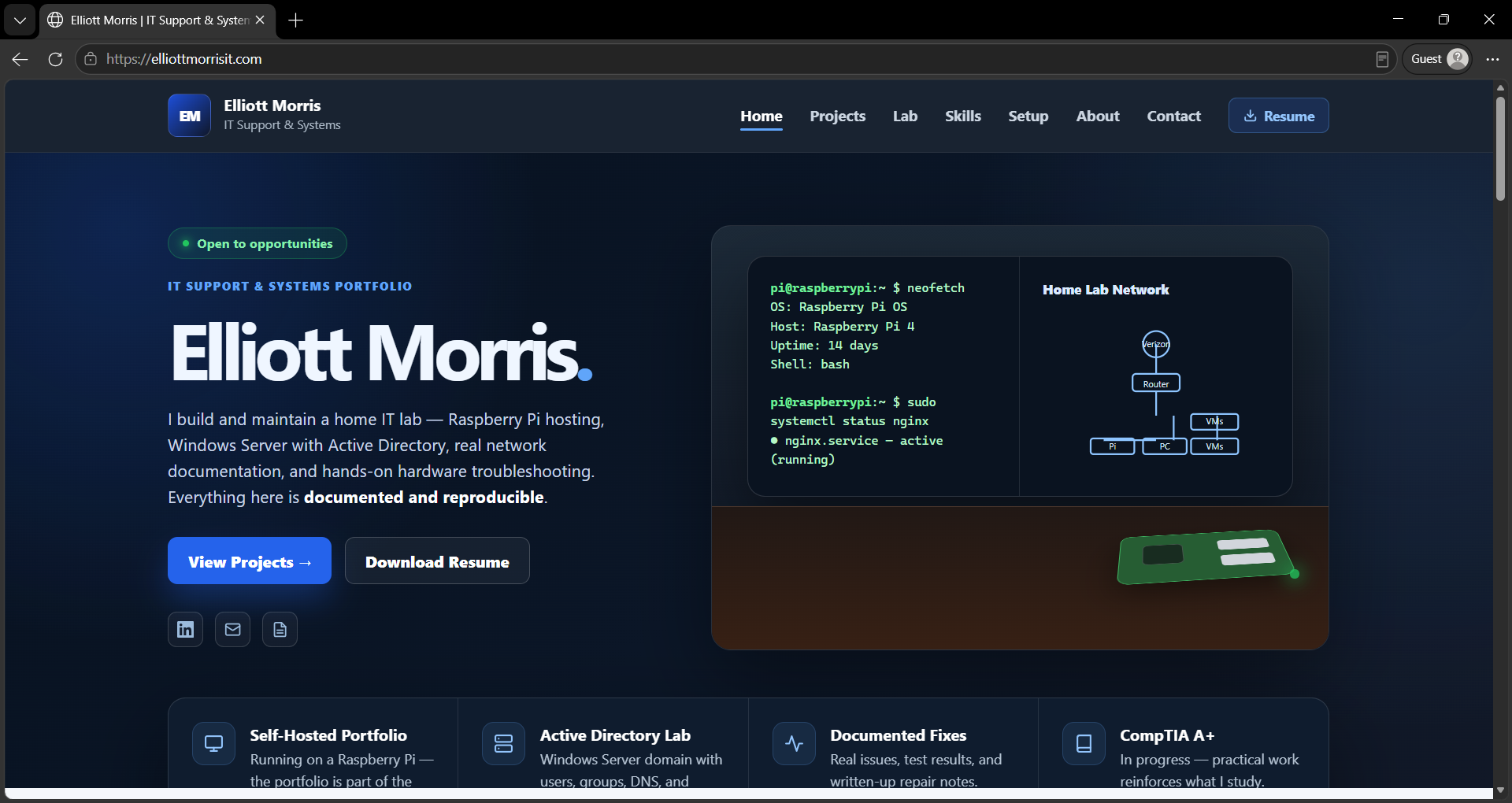
Transferred the portfolio from the Windows PC to /var/www/html/ using SCP. Restored web server file ownership with chown and restarted lighttpd. Verified the portfolio loaded correctly at http://192.168.1.174.
Installed cloudflared, created a tunnel routing elliottmorrisit.com to lighttpd on port 80, and registered it as a systemd service so it starts automatically on every boot. The site is now publicly accessible with no port forwarding on the router.
Commands used
# Connect to the Pi over SSH from Windows
ssh [email protected]
Linux raspberrypi 6.1.21-v8+ aarch64
graymor@raspberrypi:~ $

# Update system
sudo apt update && sudo apt upgrade -y

# Verify web server is running
sudo systemctl status lighttpd
● lighttpd.service - Lightweight HTTP server
   Active: active (running)

# Transfer site files from Windows via SCP
scp -r ".\elliott-portfolio-v2\." [email protected]:/var/www/html/

# Restore ownership so web server can read files
sudo chown -R www-data:www-data /var/www/html/
sudo systemctl restart lighttpd
● lighttpd.service: active (running)
Screenshots
What went wrong
The router was handing the Pi a 10.0.0.x address while the Windows PC was on 192.168.1.x, so SCP couldn't reach the Pi at all. Diagnosed it with hostname -I on the Pi and ipconfig on Windows, then pinned the Pi to a static 192.168.1.174 via /etc/dhcpcd.conf so both machines shared a subnet.
After SCP'ing the site, the pages stopped loading. The transferred files were owned by my user account, not the web server, so lighttpd couldn't read them. Fixed by restoring ownership with sudo chown -R www-data:www-data /var/www/html/ and restarting the service — a reminder that web servers run as their own user.
What I learned
The first real error I hit was a permissions issue. Learned to check ownership with ls -la and to understand when sudo is needed vs. when it's the wrong tool.
The Pi's address kept shifting — and at one point landed on a different subnet than my PC, which broke remote access entirely. Setting a static IP in /etc/dhcpcd.conf gave it a fixed, predictable address to SSH and deploy to.
start / stop / enable / status — I used these constantly. Understanding the difference between starting a service now vs. enabling it at boot is fundamental.
ping → SSH → HTTP. Verifying each layer separately made it easy to narrow down where a problem lived rather than guessing at the application level first.